Hiding group details
In a report containing multiple groups, it is sometimes useful to hide the details for a specific group if you do not want to display all the information at the same time. For example, in a sales report that groups orders by state and product, you can display only the state totals, by choosing the top-level group, state, and then selecting the Hide Detail option. Hiding the details from the state group recursively hides all data within the state group; the report hides product groups and the order details within each product group.
When you work with a report that organizes data in groups, you can change the report to a summary report by hiding the group details. Hiding details, particularly for a report that runs into hundreds of pages, helps you display key information at a glance.
Figure 5-18 shows two reports that contain the same data. The report on the left shows all details. The report on the right hides the details within each product line group.
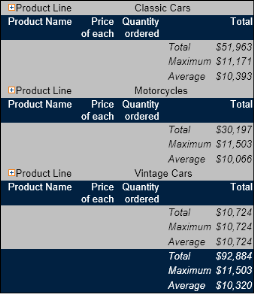
Figure 5-18  
How to hide group details
Select the grouped column whose details you want to hide. From the context menu, choose Group→Hide Detail.
How to redisplay group details
Select the grouped column, then from the context menu choose Group→Show Detail.

Additional Links:

© Copyright OpenText Corp. All rights reserved. Privacy Policy | Cookie Policy

BIRT iHub 2
