I don’t want to use the tutorial. Can I go directly to BIRT F-Type?
Yes, you can. Instead of uploading a BIRT design or BIRT document, click on the “Exit Tutorial” button on the top right of the window, check the box in the dialog, and start working with the product.
I am not sure about the location of my JDBC driver, or I don’t know which JDBC driver to use.
You can proceed with the tutorial without uploading the missing driver. However, when you open your BIRT design or document in BIRT Designer, please look at the data connection properties for the driver string.
Uploading BIRT designs
I don’t have a report.
Instead of uploading your own report, you can download a sample report that ships with BIRT F-Type. Click on download a sample BIRT design on the first screen of the tutorial, download the zipped sample report design, unzip and continue from there.
I want to upload a report that was built with BIRT Designer Pro. Will that work?
In some cases, content built with BIRT Designer Pro will not work in the tutorial which has specifically been designed for open source BIRT users. But BIRT Designer Pro content will work in BIRT F-Type. BIRT Designer Pro users can skip the tutorial, and go either straight to BIRT F-Type to upload their design files or use BIRT Designer Pro to publish their design files on the server.
I am using Maximo reports. Can I use BIRT F-Type? Can I use the tutorial?
Yes, you can. Typically, all Maximo reports contain scripted data sources. If your Maximo report fails to run in the upload tutorial, download the BIRT sample report, and continue from there. In order to make your Maximo reports work, follow the step-by-step instructions here.
Uploading dependency files
I don’t know where my missing files are.
You can proceed to the next step without uploading the missing resources. However, looking up the locations of your missing files in BIRT Designer is a quick way to solve this issue.
My files do not get uploaded. How can I proceed?
Your report might run without the missing files but if it does it will not look complete. Try another BIRT design by clicking on “Choose different file”. Opening the report in BIRT Designer or BIRT Designer Pro might give you an idea of the location.
The dependencies for my uploaded report have an absolute path. How does this impact running the report in the tutorial or in BIRT F-Type?
You may not have the right privileges to copy the resources to the corresponding absolute path on the server that BIRT F-Type is running on. There might be different machines for different purposes such as development, testing, or production. For example, you might use open source BIRT on Windows for development and setup BIRT F-Type on Linux for production. Such an absolute path cannot be supported.
BIRT F-Type can identify resources that use an absolute path, but it cannot consistently access these resources. The absolute path will refer to a location within the system on which the report design was developed. If the resource has an absolute path, the browser has no way of knowing where (on which system) the resource is.
There are two ways to address this:
1 Change the report design to reference the resource using a relative path. This is the preferred approach since it removes the absolute path from the design.
2 Copy the resource to the same absolute address on the server where BIRT F-Type is installed.
How can I upload another report when I am on the features showcase page or have exited the tutorial? Can I upload multiple reports at once?
There are three ways to upload more reports:
1 Publish from BIRT Designer Pro directly to BIRT F-Type for uploading multiple reports at once (recommended).
2 Use BIRT F-Type to upload reports/files by using the upload button on top of the page.
3 To upload reports one by one, run the tutorial again.
Click on “Exit Tutorial” and don’t check the box in the dialog window that pops up. After, log out of BIRT F-Type and log back in. Choosing this approach has one advantage: When your report is being uploaded, the system will recognize the dependency files automatically.
How do I get from the tutorial to BIRT F-Type?
Click the “Exit Tutorial” button on the top right, check the box in the dialog box if desired and start working with the product.
I have scheduled a report in the tutorial Where can I see that job?
Once you are in the product, choose “My Jobs” on the left navigation panel and click on “Schedules” to see your scheduled BIRT content. For more information, please use this link: Learn More.
Can I make the tutorial available to all users?
The tutorial experience is available to all users with administrator rights.
Interactivity is disabled for my uploaded report.
Interactivity is not enabled for reports with more than 200 pages as that could easily consume a large portion of your daily data quota.
How can I add a new user?
Once you are in the product, choose “BIRT iHub Administration” on the administrator drop‑down menu and click on “+Add User”. Please see this video for step-by-step instructions.
Where does the data for the sample report reside?
When using the BIRT sample report that ships with the product, you will find the data source (BIRT Data Objects), once you are in the product.
On the left navigation pane go to Documents➛Resources.
Working with BIRT Data Objects requires BIRT Designer Pro, the commercially available designer from Actuate, which you can download from this location.

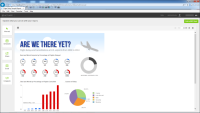
 Interact—Learning about Interactive Viewer