Exporting content to Microsoft Excel
Interactive Viewer supports exporting content to Microsoft Word and Word 2007. To export content to either version of Word, on Export Content, specify the following information:
You can use Interactive Viewer to export a BIRT report, selected pages of a BIRT report, or a specific report element such as a chart, to Microsoft Excel and Excel 2007. The exported content in either version of Excel has exactly the same layout as the HTML page. In addition, both versions of Excel support the following properties:
|
n
|
Formulas used in computed columns and aggregations in the existing report or report element are maintained in Excel format.
|
Each output Excel document contains one content sheet, and one or more data sheets. If you are exporting a report containing a table view, and a chart view of data, exporting the chart view of the report to Excel results in the exported output displaying the chart. Similarly if you export the table view to Excel, Excel displays tabular data.
You can set the following additional options:
|
n
|
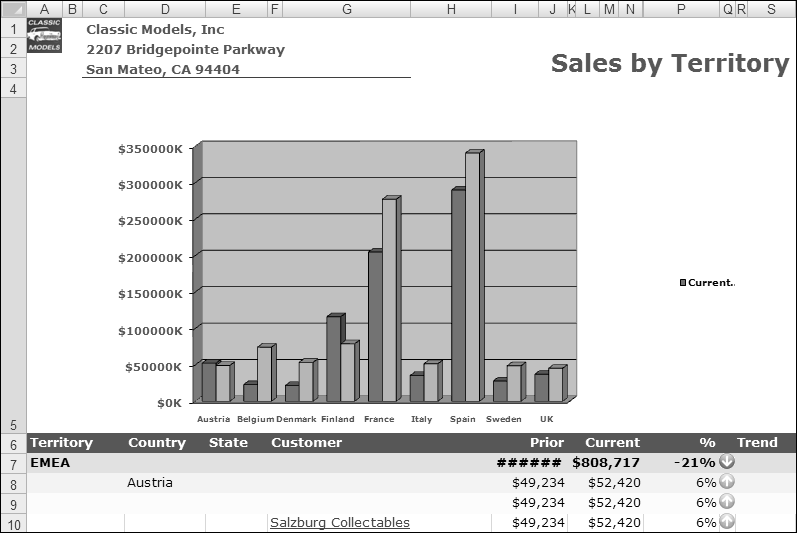
Export any chart in the report as an image. If you select this option the Excel emitter does not allow you to edit the chart in Excel. To allow users to edit the chart as needed, deselect this option. When deselected, the chart appears in Excel as shown in Figure 4-8, and can be edited.
|
|
n
|
Specify the output DPI for charts, to view the exported image in higher resolution. Increasing the DPI value can result in a larger output file size. If you do not modify this field, Interactive Viewer exports the chart at 192 DPI.
|
|
n
|
To hide grid lines in the resulting spreadsheet, select hide grid lines. Hiding grid lines modifies the appearance of the output data in such a way that it resembles the report viewed in Interactive Viewer more than it does a spreadsheet.
|
|
n
|
To view report output on multiple sheets, select this option. Selecting this option does not maintain pagination properties when you export a multipage report.
|
|
n
|
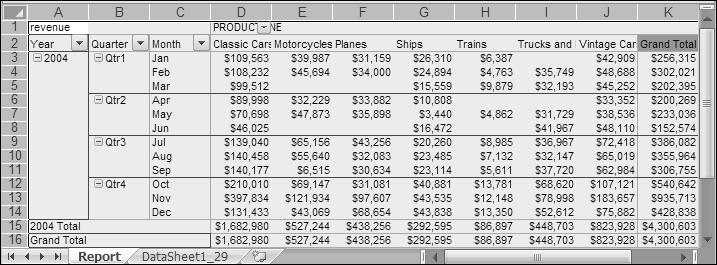
Select Enable Pivot table, when you export a cross tab to Excel. When selected, this option enables Excel to display cross-tab data as a pivot table providing the user with the ability to further analyze the data. Figure 4-9 shows a cross tab exported to Excel.
|