How to change the order in which columns appear when displaying data rows
e.Report Designer Professional displays data row variables as columns in the order in which they appear, from top to bottom, in Data Row Editor.

Figure 4-11 The DataStream component
|
2
|
Right-click the DataRow component and choose Data Row Editor. Data Row Editor displays the available data row variables, as shown in Figure 4-12.
|
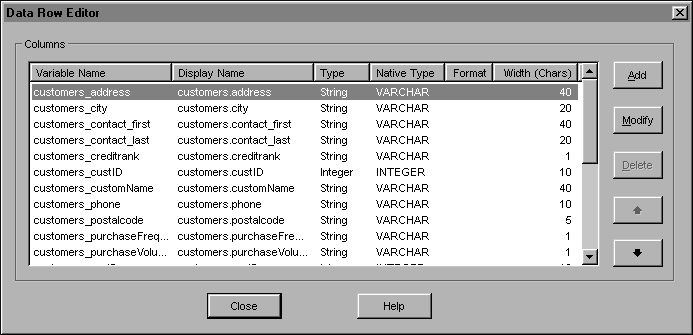
Figure 4-12 Available data rows
|
3
|
Select a data row variable, then use the up and down arrows to reorder the variable. Figure 4-13 shows the Data Row Editor after you move customers_address to the third position and customers_city to the fourth position.
|
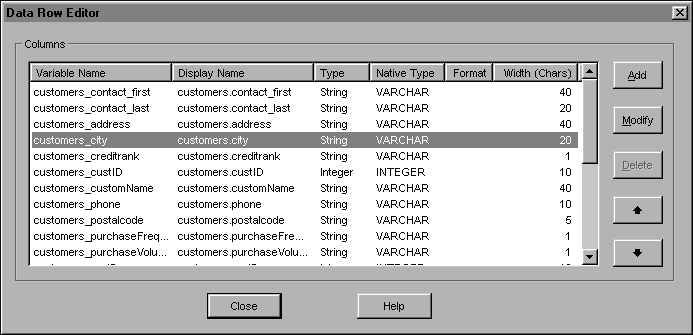
Figure 4-13 Reordered data row variables
|
4
|
Choose Report→Build and Run. If Requester appears, make your selections and choose OK. e.Report Designer Professional generates the data object executable file, runs it, and displays the data rows in Report Viewer. Figure 4-14 shows the columns, reordered as specified in Data Row Editor.
|
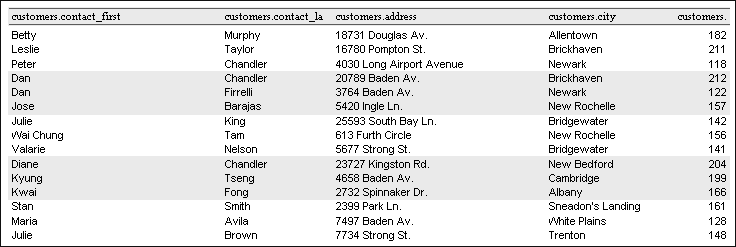
Figure 4-14 Report Viewer, showing the reordered columns
