Task 3: Build a data set
In this procedure, you build a data set to indicate what data to extract from the Customers, OrderDetails, and Products tables.
1 In Data Explorer, right-click Data Sets, and choose New Data Set.
2 In New Data Set, type the following text for data set name:
Sales
3 Choose Next.
4 Use the following SQL SELECT statement to indicate what data to retrieve. Type the column and table names, or drag them from Available Items to the appropriate location in the SELECT statement.
SELECT Customers.state,
Orderdetails.quantityOrdered,
Orderdetails.priceEach,
Products.productline
FROM Customers INNER JOIN Orders ON Customers.customerNumber = Orders.customerNumber
INNER JOIN Orderdetails ON Orders.orderNumber = Orderdetails.orderNumber
INNER JOIN Products ON Orderdetails.productCode = Products.productCode
WHERE Customers.country = 'USA'
This SELECT statement joins four tables to get the required data.
5 Choose Finish to save the data set. Edit Data Set displays the columns specified in the query, and provides options for editing the data set.
6 Choose Computed Columns, then choose New to create a computed field that calculates extended prices by multiplying values from the QUANTITYORDERED and PRICEEACH fields.
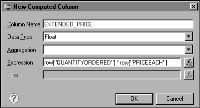
7 In New Computed Column, specify the following values, as shown in
Figure 18‑2:
1 In Column Name, type
EXTENDED_PRICE
2 In Data Type, select Float.
3 In Expression, type
row["QUANTITYORDERED"] * row["PRICEEACH"]
Alternatively, open the expression builder to construct the expression by selecting the appropriate data set fields. Note that data set field names are case-sensitive. If you typed row["quantityOrdered"] in the Expression field, BIRT displays an error when you preview the results returned by the data set. The case requirement for data set field names is unlike the SELECT statement where you can type table field names in any case.
Figure 18‑2 Computed field EXTENDED_PRICE
4 Choose OK to save the computed field.
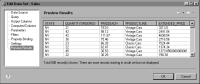
8 Choose Preview Results to confirm that the query returns the correct data.
Figure 18‑3 shows some of the data rows that the data set returns.
Figure 18‑3 Preview of rows returned by the Sales data set
9 Choose OK to save the data set.