Task 6: Add grand totals
Each number displayed in the cross tab represents the sales total of a particular product for a particular state. In this procedure, you add grand totals to display the total sales of all products for each state, the total sales of each product, and the total of all sales across products and states.
1 Choose Layout to resume editing the cross tab.
2 Select the cross tab, if necessary, by clicking on the tab in the lower left corner of the cross tab. Make sure you select the entire cross tab, not just a part of it.
3 In Property Editor, choose the Row Area tab.
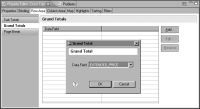
4 Choose Grand Totals, then choose Add.
5 In Grand Total, shown in
Figure 18‑11, use the default values, then choose OK.
Figure 18‑11 Creating grand totals in the cross-tab row area
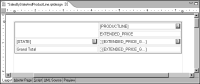
A new row is added to the bottom of the cross tab, as shown in
Figure 18‑12. In this row is a label that displays Grand Total and a data element that displays

[EXTENDED_PRICE].
Figure 18‑12 Cross tab including a new row to display grand totals
6 In Property Editor, choose the Column Area tab.
7 Choose Grand Totals, then choose Add.
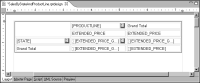
8 In Grand Total, use the default values, then choose OK. A new column is added to the cross tab, as shown in
Figure 18‑13.
Figure 18‑13 Cross tab with a new column to display grand totals
9 Preview the report. Grand totals appear in the last row and last column of the cross tab.