Displaying multiple dimensions in row and column areas
When building a cross tab, you typically group the aggregate data by at least two dimensions, for example, sales totals by year and product line, or sales totals by year and state. Often, report users want to view aggregate data by more than two dimensions.
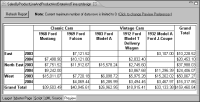
The cross tab in
Figure 18‑39 shows the sales total by region, state, product line, and product. To create the cross tab, two dimensions (State and Year) are inserted in the row area, and one dimension (ProductLines) is inserted in the column area. The ProductLines dimension has two levels, ProductLine and ProductName.
Figure 18‑39 Cross tab using multiple dimensions in the row and column areas
As the example shows, each additional dimension by which you group data appears as a column or row, and each additional dimension provides a more comprehensive and detailed view of the data. Just as you can define an unlimited number of dimensions for a cube, you can build a cross tab that displays aggregate data by as many dimensions as you want.
Calculating aggregate data by too many dimensions, however, can result in many empty cells, a problem commonly referred to as data sparsity. When designing a cube that contains more than two dimensions, make sure that processing time is not spent calculating zeros.
In addition, a cross tab that contains more than two or three dimensions in either the row or column area is difficult to read. Rather than display data by too many dimensions in a single cross tab, consider dividing the data into multiple cross tabs.