How to create a derived measure
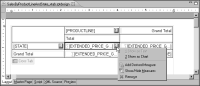
1 Click the button next to a data element that displays a measure, as shown in
Figure 18‑49.
Figure 18‑49 Displaying a menu for a selected measure in the cross tab
2 Choose Add Derived Measure.
3 In Derived Measure, specify the following information:

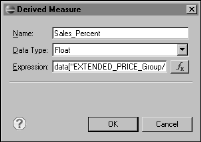
In Name, type a name for the derived measure.
In Data Type, select a data type appropriate for the data returned by the expression you specify next. For a derived measure, you typically select Float or Integer.
In Expression, specify the expression that evaluates to the data to return. Use the expression builder to construct the expression.
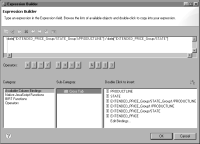
Figure 18‑50 shows an example of an expression for calculating the product line sales total as a percentage of the state total. The expression uses column bindings defined in the cross tab.
Figure 18‑50 The expression builder showing an expression
Figure 18‑51 shows an example of a complete definition for a derived measure.
Figure 18‑51 Defining a derived measure in a cross tab
4 Choose OK to save the derived measure.
In the layout editor, the cross tab displays the derived measure next to the measure you selected in the first step.