How to display subtotals and grand totals
1 Select the cross tab.
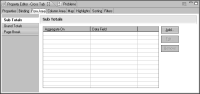
2 In Property Editor, choose the Row Area tab or the Column Area tab to add a subtotal or grand total in the row area and column area, respectively.
Figure 18‑53 Adding a subtotal to a cross tab’s row area
3 To create a subtotal, select Sub Totals, then choose Add. To create a grand total, select Grand Totals, then choose Add.
A cross tab can always include grand totals. If a row or column area consists of only one dimension, however, there can be no subtotals. The Add button is disabled if you cannot create a subtotal.
4 In Sub Total or Grand Total, specify the following information:
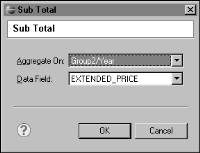
1 In Aggregate On, select the dimension or dimension level for which to display the total.
2 In Data Field, select the summary field for which to aggregate values.
Figure 18‑54 shows an example of displaying subtotals for the year dimension.
Figure 18‑54 Specifying a subtotal in a cross tab
3 Choose OK.
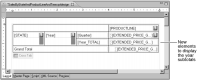
A new row or column, which contains a label and a data element, is added to the cross tab. For the subtotal example shown in
Figure 18‑54, a label in the new row displays [year_TOTAL], and a data element displays

[EXTENDED_PRICE], as shown in
Figure 18‑55.
Figure 18‑55 Elements that display year subtotals in a cross tab