Displaying user-defined values in row and column headings
By default, the row and column headings in a cross tab display dimension values exactly as they appear in the data set fields. These values can sometimes be cryptic or ambiguous. You can replace such values with more descriptive terms.
Sometimes, certain values appear infrequently in a set of rows. Consider the example in which certain products sell very poorly. In a cross tab that displays sales data by product and month, rather than display a row for every product and show many empty cells, you can group all the unpopular products into one user-defined value named Others.
Compare the reports in
Figure 18‑64,
Figure 18‑65, and
Figure 18‑66. The report in
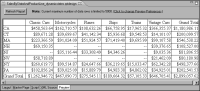
Figure 18‑64 shows sales by state and product line. The state values display exactly as they appear in the state field.
Figure 18‑64 Cross tab displays sales totals by state and product line
The report in
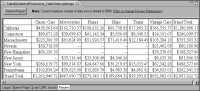
Figure 18‑65 shows the same data, except that the abbreviated state names are replaced with full state names.
Figure 18‑65 Cross tab displays full state names
The report in
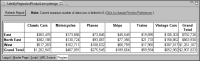
Figure 18‑66 shows sales data by regions instead of by state. The region values are not stored in a field. Rather, the region values are created using expressions that group states into user-defined regions. Grouping the data provides a different view of the data, and in this example, eliminates empty values from the cross tab. BIRT calculates the new sales totals according to the user-defined groups.
Figure 18‑66 Cross tab displays sales totals grouped into regions