How to create an iHub profile
1 In Actuate BIRT Designer, open iHub Explorer. If you do not see the iHub Explorer view in the designer, select Windows➛Show View➛iHub Explorer.
2 In iHub Explorer, right-click Servers, and choose New iHub Profile.
3 In New iHub Profile, specify the connection information.
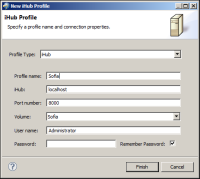
Figure 2‑2 displays an example of connection properties provided for an iHub named Athena.
Figure 2‑2 Setting properties for an iHub profile
1 In Profile type, select iHub.
2 In Profile name, type a unique name that identifies the new profile.
3 In iHub, type the name or IP address of the iHub.
4 In Port number, type the number of the port to access iHub.
5 In Volume, select the iHub Encyclopedia volume.
6 In User name, type the user name required to access the volume.
7 In Password, type the password required to access the volume.
8 Select Remember Password, you can choose to remember the password.
4 Choose Finish to save the iHub profile. The iHub profile appears in the iHub Explorer as shown in
Figure 2‑1.