Configuring Information Console functionality levels with functionality-level.config
A functionality level defines which Information Console user interface features are visible and usable by members of an Encyclopedia volume security role or roles. By default, every uses can access all functionality levels. Functionality levels corresponding to iHub security roles like Intermediate, Advanced, and Administrator, are provided in the comments of the functionality-level.config file. For example, by default every functionality level shows Log out, Options, and Help links on the Information Console banner.
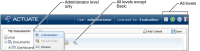
The Intermediate and Advanced levels add a Search link to the documents page and the capability to add tabs, and the Administrator level adds a Customization link, as shown in
Figure 3‑1.
Figure 3‑1 The banner appearance for a user at the Administrator functionality level
Actuate Information Console provides five functionality levels by default. Four functionality definitions specify a corresponding Encyclopedia volume security role that provides access to that functionality level.
Table 3‑3 shows the functionality levels and their corresponding security roles. The Administrator level is the Information Console Administrator, not the Encyclopedia volume administrator.
Table 3‑3 Information Console default functionality levels and the corresponding Encyclopedia volume security roles
Functionality level | Security role |
Basic | All (The All role includes all users.) |
Intermediate | Active Portal Intermediate |
Advanced | Active Portal Advanced |
Administrator | Active Portal Administrator |
Customize a functionality level by creating or modifying entries in the following file:
<context root>\WEB-INF\functionality-level.config
When modifying the configuration file, ensure that functionality levels in the configuration file specify a corresponding security role to enable access to that functionality level. You can modify the built-in levels but you cannot delete them.
The following example shows the definition of the Basic functionality level:
<Level>
<Name>Basic</Name>
<Role>All</Role>
<FeatureID>Jobs</FeatureID>
<FeatureID>Documents</FeatureID>
<FeatureID>Channels</FeatureID>
<SubfeatureID>DeleteFile</SubfeatureID>
<SubfeatureID>InteractiveViewing</SubfeatureID>
</Level>
Every functionality level entry in the configuration file must have the five components shown in the following sections.
Name
Use a unique alphanumeric string for the functionality level name, enclosed within the <Name> and </Name> tags, such as <Name>Intermediate</Name>.
Role
The Role component defines the name of the Encyclopedia volume security role that corresponds to the functionality level. Both the security role and the functionality level must exist before you can assign the functionality level to a user. Enclose the security role name within <Role> and </Role> tags, such as <Role>Active Portal Intermediate</Role>.
Features
There are five features, which are described in
Table 3‑4.
Table 3‑4 Features of functionality levels
Feature | Description |
Channels | Provides access to channels |
Customization | Provides access to skin customization |
Documents | Provides access to files and folders |
Jobs | Supports submitting and accessing jobs |
Mobile | Provides access to BIRT mobile viewing |
Search | Provides access to file and folder search |
Enclose the feature within <FeatureID> and </FeatureID> tags. When you omit a feature from a functionality level, the corresponding side menu or banner item is not visible to anyone using that functionality level. For example, the Search feature is not available to the Basic functionality level, so the Search link does not appear in the banner for a user at the Basic functionality level.
Feature IDs
Functionality-level.config defines the features that are available to Information Console users as well as functionality levels. The following example shows the Documents feature definition from functionality-level.config:
<Feature>
<ID>Documents</ID> <Labelkey>SBAR_DOCUMENTS</Labelkey><Link>/getfolderitems.do</Link>
<SmallIcon>/iportal/activePortal/images/filesfoldersicon16x16.gif
</SmallIcon>
<LargeIcon>/iportal/activePortal/images/filesfoldersicon.gif
</LargeIcon>
</Feature>
The ID identifies the feature for Information Console. The label key appears on the side menu for Documents, Jobs, and Channels, or in the banner for Search and Customization. The link specifies the action that is executed for the feature. The small and large icons represent the feature in the side menu. Only the side menu features use the small and large icons.
Although you can customize the labels and links of all five features, do not change the <ID> or <Labelkey> tag values. Information Console uses these tags to identify the features and perform resource management. The Labelkey provides the resource to use for the feature’s text label.
Changing the Link tag’s value specifies a different action to execute. Changing the icon files changes the side menu’s appearance. The small icons are used by the Treeview skin and are 16x16 pixels. The large icons are used by the Classic skin and are 32x32 pixels. The Tabbed skin does not use icons. Link and icon file names are relative to <context root>.
Subfeatures
A subfeature corresponds to an action you can perform using the Information Console user interface. A user must have appropriate privileges to create, delete, or share files or folders.
Table 3‑5 describes the subfeatures.
Table 3‑5 Subfeatures of the features described in
Table 3‑4 Feature | Subfeature | Supported functionality |
Channels | SubscribeChannel | Subscribing to channels. |
Documents | AddFile | Uploading files. |
Documents | CreateFolder | Creating folders. |
Documents | DeleteFile | Deleting files. |
Documents | DeleteFolder | Deleting folders. |
Documents | DownloadFile | Downloading files. |
Documents | ShareFile | Sharing files. |
Jobs | JobPriority | Setting job priority, up to the user’s maximum job priority. |
Jobs | SelfNotificationWithAttachment | E-mail notification for successful jobs. |
None | InteractiveViewing | Using BIRT Interactive Viewer. |
None | AdvancedData | Used in BIRT Studio. |
None | DashboardBusinessUser | Viewing and editing dashboards and gadgets. |
None | DashboardDeveloper | Creating and configuring gadgets and dashboards. |
None | ShareDashboard | Sharing dashboards. Requires either DashboardBusinessUser or DashboardDeveloper. |
Specify one subfeature to a line and enclose each subfeature within <SubfeatureID> and </SubfeatureID> tags. Each subfeature is associated with a feature. You cannot include a subfeature in a functionality level if its corresponding feature is not available to that functionality level.