How to schedule a custom event
iHub Management Console provides an Encyclopedia volume administration interface for submitting, displaying, and modifying an event-based job.
To specify a custom event when scheduling a job, perform the following tasks:
1 Open iHub Management Console and log in to the Encyclopedia volume as Administrator.
2 On Files and Folders, navigate to the report to run, select the arrow to the left of the report, and choose New Background Job.
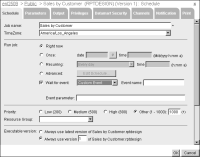
3 On Schedule, perform the following tasks, as shown in
Figure 6‑6:
1 Select Wait for event.
2 In the drop-down box next to Wait for event, select Custom Event.
3 Enter the required event name and parameters.
Figure 6‑6 Example of job settings for a custom event
Implementing a custom event service
The source code for the sample implementation of a custom event service is in the com.actuate11.event.sample package in the Custom Event Web Service folder of BIRT iHub Integration Technology. This package contains one class, SampleEventService.java. The JAR file for this application is in \lib. The Custom Event Web Service folder also contains a build.xml file for compiling the application using the Apache Ant build tool.
In the installed application, BIRT iHub polls the program using the custom event web service by calling SampleEventService.GetEventStatus( ). This method returns the event status code, which indicates whether the event condition is satisfied or expired.
To implement a custom event service, modify the sample implementation or implement the interface in a class that you create. If you create a class, you must implement the GetEventStatus( ) method of the BIRT iHub EventService interface.
Building a custom event service
BIRT iHub Integration Technology supplies an Apache Ant build script, build.xml. Building the default target "build" using Ant creates eventSample.jar in $INSTALL_DIR\Actuate\ServerIntTech\Custom Event Web Service\lib. Building the target with the "clean" option, cleans up generated class and jar files.
For information about Apache Ant, see the Apache Ant web site at http://ant.apache.org.
Deploying the service on an application server
Stop the application server that runs the event service, add the JAR file to the application server, configure the application server, and restart the server.
For the application server that ships with BIRT iHub, the following directory is the default context for the BIRT iHub custom event service:
$AC_SERVER_HOME/servletcontainer/webapps/acevent/WEB-INF/lib
To deploy the event service to the default context, copy the JAR file to the lib directory.
Update the event service class.properties file to point to the event service class file. If you deploy the event service using the BIRT iHub default context, update the contents of the class.properties file inside eventWsdl.jar located in the application server directory webapps/acevent/WEB-INF/lib.
The following example shows the setting for the sample event service class:
class=com.actuate11.event.sample.SampleEventService
As an alternative, you can also create the following application server directory and put the class.properties file in the directory:
/webapps/acevent/WEB-INF/classes/com/actuate11/event/wsdl
If you use a different context, specify the appropriate context. For example, if you use another folder under webapps called myEvent, then create the following folder myEvent/com/actuate11/event/wsdl/class.properties and point it to your class:
class=com.myCompany.myEvent
About the custom event web service sample
The SampleEventService class implements the BIRT iHub EventService interface. This interface specifies the GetEventStatus( ) method. You must implement this method with custom logic that provides the current status of each event in the input list.
In GetEventStatus( ), the supplied event service logic is minimal. The method performs the following operations, as shown in the next code example:

Sets up an array to contain the input list received as an ArrayOfEvent object in the request from BIRT iHub
Sets up an array to contain the output list sent back as an ArrayOfEventStatus object in the response to BIRT iHub
Iterates through the input event list, instantiating an EventStatus object for each item in the list, and performing the following operations:
Sets the event number taken from the input list
Sets the status code by testing to see if the event occurred and setting the status to indicate satisfied or expired
Adds the EventStatus object to the output list
Returns the ArrayOfEventStatus array in the response to BIRT iHub
package com.actuate11.event.sample;
import com.actuate11.event.interfaces.*;
import com.actuate11.event.*;public class SampleEventService implements EventService
{
boolean logic = true;
// Implement the custom event service logic here
public ArrayOfEventStatus GetEventStatus( ArrayOfEvent eventList )
throws SOAPException
{
logic = !logic;
Event[ ] inputList = eventList.getEvent( );
ArrayOfEventStatus outputList = new ArrayOfEventStatus( );
EventStatus[ ] eventStatusList = new
EventStatus[inputList.length];
if(inputList == null)
return null;
for (int i = 0; i < inputList.length; i++) {
Event inputEvent = inputList[i];
EventStatus eventStatus = new EventStatus( );
eventStatus.setEventNumber(inputEvent.
getEventNumber( ));
eventStatus.setStatusCode
(logic?EventStatus_StatusCode.Satisfied:
EventStatus_StatusCode.Expired);
eventStatusList[i] = eventStatus;
}
outputList.setEventStatus(eventStatusList);
return outputList;
}
}