How to enable the open security web service to use the Java RSSE application
To enable Open Security as a web service on an Encyclopedia volume, perform the following operations:
1 Log in to the iHub Configuration Console, choose Advanced View, and perform the following operations:
1 Choose Volumes.
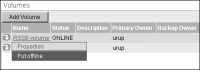
2 In Volumes, from the Encyclopedia volume’s drop-down list, choose Properties, as shown in
Figure 10‑1.
Figure 10‑1 System volume properties
3 On Volume—Properties, choose Open Security.
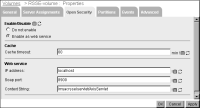
4 On Open Security, in Enable/Disable, choose Enable as web service.
In Web service, specify the following information as required:

IP address or machine name where the web service resides
SOAP port where the web service listens
Context string indicating the path for BIRT iHub to use when sending messages to the web service.
Figure 10‑2 The Open Security tab
Choose OK.
Starting with Release 11, the default location for acserverconfig.xml and acserverlicense.xml is AC_DATA_HOME/server/config. AC_DATA_HOME refers to the folder the installer specified as the location for data during the iHub installation. By default, that path is C:/Actuate/iHub/data on a Windows system, and /<Installation directory>/AcServer/data on a Linux system.
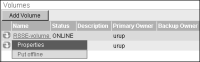
5 From the Encyclopedia volume’s drop-down list, choose Put offline, as shown in
Figure 10‑3.
Figure 10‑3 Putting an Encyclopedia volume offline
2 Take the Encyclopedia volume online.
3 Test the installation of the Java RSSE application.
For example, log in to the Encyclopedia volume using iHub Management Console as the user, Administrator, as defined in the LDAP configuration file, typing the password specified in the LDAP server.