Deploying a report to an Encyclopedia volume
Test page-level security by deploying the sample design to the Encyclopedia volume. For example, a report may shows information about the sales reps in the following city offices:

NYC
Boston
Philadelphia
User1 has access to the pages with information about NYC office, user2 to the Boston office, and user3 to the Philadelphia office. The file, user.acls, contains the following access control list specifications:
user1=NYC
user2=Boston
user3=Philadelphia
To deploy the sample design to an Encyclopedia volume, perform the following steps:
1 Using iHub Management Console, log in to the Encyclopedia volume as Administrator.
2 In Files and Folders, choose Add File and upload the design to the Encyclopedia volume.
3 In Files and Folders, from the design file drop-down list, choose Run to execute the design.
On Parameters, select Save the output document to create a document on the Encyclopedia volume.
Choose OK to view the document output.
The administrator is able to see all three offices.
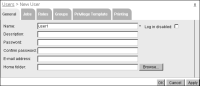
4 On Users, choose Create User to create a new user.
Figure 10‑4 Creating a new user
Choose OK.
Repeat step 4 to create user2 and user3.
5 In Files and Folders, from the design file drop-down list, choose Properties, then perform the following operations:
1 To set the privileges on the design file, choose Privileges.
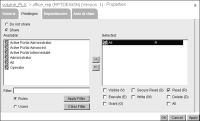
2 On Privileges, in Available, select All, then choose the right arrow to copy All to Selected.
3 Select Read.
Privileges for All on office_rep.rptdesign looks like
Figure 10‑5.
Figure 10‑5 Specifying user privileges
4 Choose OK.
6 On Files and Folders, from the document drop-down list, choose Properties, then perform the following operations:
1 To set the privileges on the design file, choose Privileges.
2 On Privileges, in Available, select All, then choose the right arrow to copy All to Selected.
3 Select Visible and Secure Read.
7 Log out from the Encyclopedia volume.
8 Log in to the Encyclopedia volume as user1.
9 View the document.
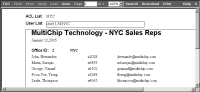
User1 can only see the information for the NYC office, as shown in
Figure 10‑6.
Figure 10‑6 Example of document output
10 Repeat steps 8 and 9, logging in as user2, then user3.
User2 can only see the information for the Boston office and user3 can only see the information for the Philadelphia office.
To change the assignments in the file, user.acls, wait for the volume cache time-out period. Alternatively, put the Encyclopedia volume offline, restart the BIRT iHub application container, then take the Encyclopedia volume online again before checking to see if the changes are effective.