How to change the text of the Actuate installation dialog boxes
This procedure uses Microsoft Visual C++ version 6.0 to customize the text in the Actuate dialog boxes that appear during installation. You can customize this text to localize the Actuate installation dialog boxes for languages other than US English. For more information about using Visual C++, see the Microsoft Visual C++ documentation.
To customize or localize InstallShield custom dialog boxes, you must modify a DLL file that is in the Actuate product installation.
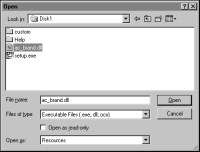
1 Using Microsoft Visual C++, open the ac_brand.dll in the Actuate product installation as Resources in an executable file, as shown in
Figure 15‑1.
Figure 15‑1 Customizing InstallShield dialog boxes
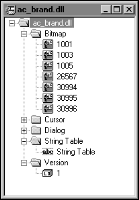
2 In ac_brand.dll, expand the following items:

Bitmap
String Table
Version
Figure 15‑2 ac_brand.dll, expanded
3 Right-click a resource, such as a bitmap, and choose Properties.
4 In Properties, you can change the following settings:
For Bitmap, change the Language, Condition, and File name.
For String Table, change the Language.
For Version, change Language and Condition.
5 To modify the text for a dialog box, perform the following steps:
1 In the expanded view, double-click String Table.
A list of IDs, values, and captions appears in the right pane, as shown in
Table 15‑2.
Table 15‑2 Sample dialog box IDs, values, and captions
ID | Value | Caption |
IDS_MSG_COPYING | 13004 | Copying files to the computer. |
IDS_SETUP_FINISH_MSG | 13019 | Setup completed successfully. |
2 Double-click a caption to modify the text.
3 In String Properties, modify the caption text.
To save the change, close String Properties.
4 Repeat steps 2 and 3 for all dialog box captions.
6 Save ac_brand.dll.