How to configure usage logging
To configure usage logging, perform the following tasks:
1 Log in to iHub Configuration Console and choose Advanced View.
2 On System—Status, choose Properties.
3 On System—Properties—General, choose Usage Logging.
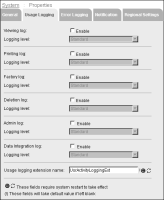
System—Properties—Usage Logging appears as shown in
Figure 11‑1.
Figure 11‑1 Configuring usage logging
4 Select the usage logging information you want to capture from the following list of logging options:

Viewing
Printing
Factory
Deletion
Admin
Data Integration
1 Select Enable to activate the logging option.
2 Select Standard or Detail for the logging level.
For viewing, deletion, and printing logging, standard and detail information are the same in the logging application that ships with BIRT iHub.
For Factory logging, detailed information includes report parameters. Logging detailed Factory information, instead of standard Factory information, causes performance degradation.
5 In Usage logging extension name, enter the name of the usage logging extension.
UsrActivityLoggingExt is the name of the default usage logging extension.
Choose OK.