How to configure error logging
To configure usage logging, perform the following tasks:
1 Log in to iHub Configuration Console and choose Advanced View.
2 On System—Status, choose Properties.
3 On System—Properties—General, choose Error Logging.
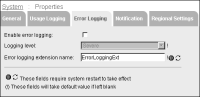
System—Properties—Error Logging appears as shown in
Figure 11‑2.
Figure 11‑2 Configuring error logging
4 Select Enable error logging.
5 Select the error logging level you want to capture from the following list of options:

Information
Logs informational messages to helps track BIRT iHub behavior.
Warning
Logs warning errors that typically do not impact normal BIRT iHub operation.
Severe
Logs errors that can cause BIRT iHub to abort execution if you do not rectify the cause of the error. A severe error does not typically cause BIRT iHub to abort execution immediately.
Fatal
Logs critical errors from which BIRT iHub cannot recover. A fatal error typically causes BIRT iHub to abort execution immediately.
6 In Error logging extension name, enter the name of the error logging extension.
ErrorLoggingExt is the name of the default error logging extension.
Choose OK.