How to sort cross tab data
1 Select the cross tab.
2 In Property Editor, choose the Sorting tab.
3 In the Sorting page, choose Add.
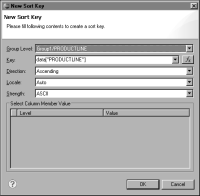
By default, New Sort Key displays sort information for the first dimension in the column area, as shown in
Figure 18‑70. The default Key value, data["PRODUCTLINE"], indicates that the values in the PRODUCTLINE dimension are sorted by product line name in ascending order.
Figure 18‑70 New Sort Key showing default sort values for the PRODUCTLINE dimension
4 In New Sort Key, supply the necessary sort information, as follows:
1 In Group Level, select the dimension on which to sort.
2 In Key, select the data on which to sort.
3 In Direction, select Ascending or Descending.
4 In Locale, select a language. The language determines the sorting, or collation, attributes that conform to local conventions. Select Auto to sort data according to the locale set on the user’s machine.
5 In Strength, select a collation strength, also known as a collation level. The collation strength determines whether accent marks, case, or punctuation are considered when sorting strings.
For more information about locale-specific sorting and collation strength, see Sorting and Grouping Data.
6 Choose OK to save the sort definition.
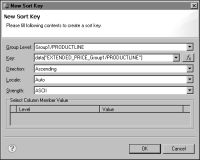
Figure 18‑71 shows an example of sorting on product line grand totals. This sort definition was created to generate the cross tab shown in
Figure 18‑69.
Figure 18‑71 New Sort Key specifying sorting on product line grand totals