How to publish a report design to iHub
1 Choose File➛Publish➛Publish to iHub.
2 On Publish to iHub, select a server profile. If there is no appropriate profile in the iHub profile list, create a new profile by choosing Add. In New iHub Profile, complete the information as shown in
Figure 2‑2. Then, choose Finish.
3 Select the project where the report you want to publish is located.
4 Select Publish Report Designs.
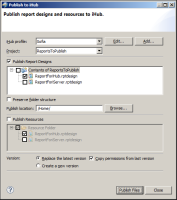
5 On Publish to iHub, select the report, as shown in
Figure 2‑3.
6 In Publish location, type or browse for the location on the Encyclopedia volume in which to publish the report design, as shown in
Figure 2‑3.
Figure 2‑3 Selecting a server and location
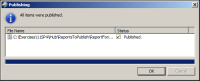
7 Choose Publish Files. A new window, showing the file upload status, appears.
On Publishing, wait until the upload finishes, then choose OK as shown in
Figure 2‑4.
Figure 2‑4 Confirming the report publishing
8 On Publish to iHub, choose Close.